
Webhooks
When a job is completed or reviewed via the dashboard, Vouched can post the job results to a defined webhook URL. This can be set as callbackURL in the JS Plugin, the Submit Job or Send Invite API endpoint.
In order to distinguish webhook types you should check the X-WebHook-Eventhttp header the values as follows:
job-reverifywhen a reverification job completesjob-tin-validationsee tin job docs for more informationjob-aml-monitoring-updatefor idv jobs with aml monitoring enabledjob-idv-completewhen a regular IDV job completes, this will be the most common onejob-dlv-completewhen DLV is enabled for IDV jobsjob-reviewwhen a job is reviewed manually through the dashboard
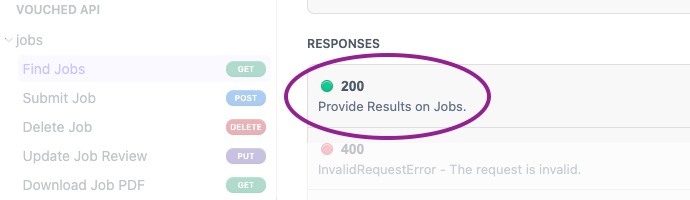
Detailed explanation for each field can be found by clicking the 200 Provide Results on Jobs. under the Find Jobs page.
Approved/Rejected properties
In the above JSON response, the main field to check whether a job approved or rejected is result.success. This boolean field indicates Approved when True or Rejected when False.
Approved jobs can still have warnings we recommend checking. The field result.warnings is a boolean that indicates whether there are warnings on the job. If there are warnings, the field result.error can be checked to understand what warnings exactly.
Common warnings are: data-checks/crosscheck error, expired document, DLV error, and AML error.
Validating Webhook Responses
All webhook requests contain X-Signature in request headers. The X-Signature is base64 encoded, created using HMAC-SHA1 using your private key as the key and using the response as data. To validate the webhook response, perform the same signature procedure and confirm that your generated signature matches the sent signature.
If your account uses the signature key, the
X-Signatureis base64 encoded, created usingHMAC-SHA1with your signature key instead of the private key.
Here is an example of validation from our Node.js sample repo.
Whitelisting
Please ensure the following IPs are whitelisted in order to receive webhook responses:
34.83.180.255
35.197.15.224
Updated about 2 months ago